Workloads
NVIDIA Run.ai offers three workload types that correspond to a specific phase of the researcher’s work:
- Workspaces – For experimentation with data and models.
- Training – For resource-intensive tasks such as model training and data preparation.
- Inference – For deploying and serving the trained model.
Creating workloads in GUI
You can start creating workloads in Workload manager section in the NVIDIA Run.ai platform. You can see there a Workload table with a list of workloads if created where you can manage them as well.
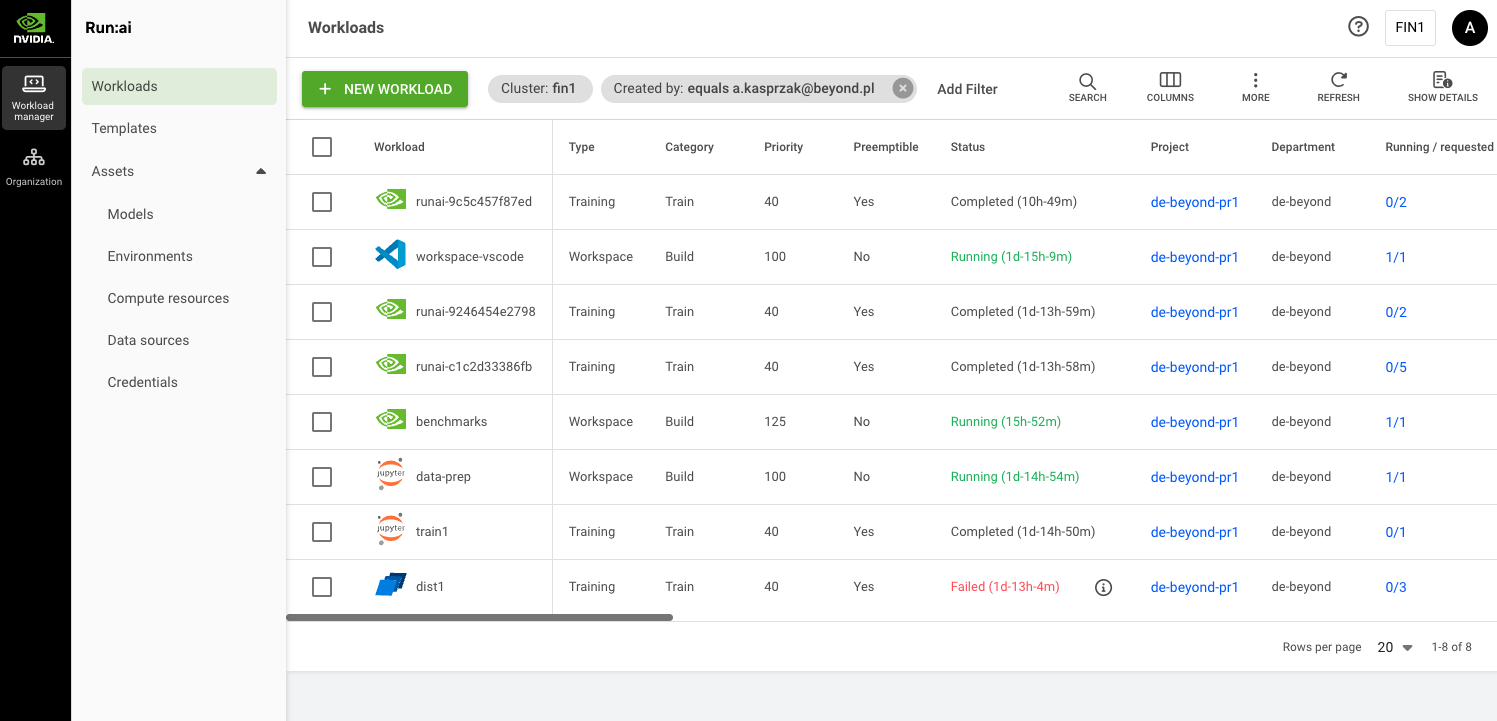
Workload Assets
Workload assets are preconfigured components you will need for your workloads.
Environments – An asset consisting of a container image configuration, tools and connections.
https://run-ai-docs.nvidia.com/self-hosted/2.22/workloads-in-nvidia-run-ai/assets/environments
Data Sources – Reserving DGX in our cloud by default hostpath refered to NVMe local storage is configured. Hostpath is not shared between DGX nodes. Additionally you can reserve AI Storage in our cloud which is NFS over RDMA from Pure Flash blade storage connected as PVC to Run.ai.
We do not allow creating data sources, to add new data source you need send us a request.
https://run-ai-docs.nvidia.com/self-hosted/2.22/workloads-in-nvidia-run-ai/assets/datasources
Compute Resources – An asset for configuring compute (CPU, Memory and GPU) resources for the workloads.
https://run-ai-docs.nvidia.com/self-hosted/2.22/workloads-in-nvidia-run-ai/assets/compute-resources
Here you can configure GPU fractions – divide the GPU/s memory to smaller chunks.
Credentials – Asset for storing secrets such us passwords, tokens and access keys, which are necessary for gaining access to various resources.
https://run-ai-docs.nvidia.com/self-hosted/2.22/workloads-in-nvidia-run-ai/assets/credentials
Creating workloads in Run.ai CLI
Naming your workload:
runai workspace submit <workload_name> -p project1 -i alpine
Workload naming can be skipped so then random name will be assigned.
Workload name can be random with specyfic prefix:
runai workspace submit --prefix-name <workload_name> –p project1 –i alpine