How to deploy Jupyterlab workload
This section explains how to deploy workspace workload with Jupiterlab as a space for building models, preparing data, working on datasets, images etc. all in single space.
This is interactive workload which means that after deploying Jupiterlab you will be allowed to connect to Jupiterlab in separate web browser tab and start your work instantly.
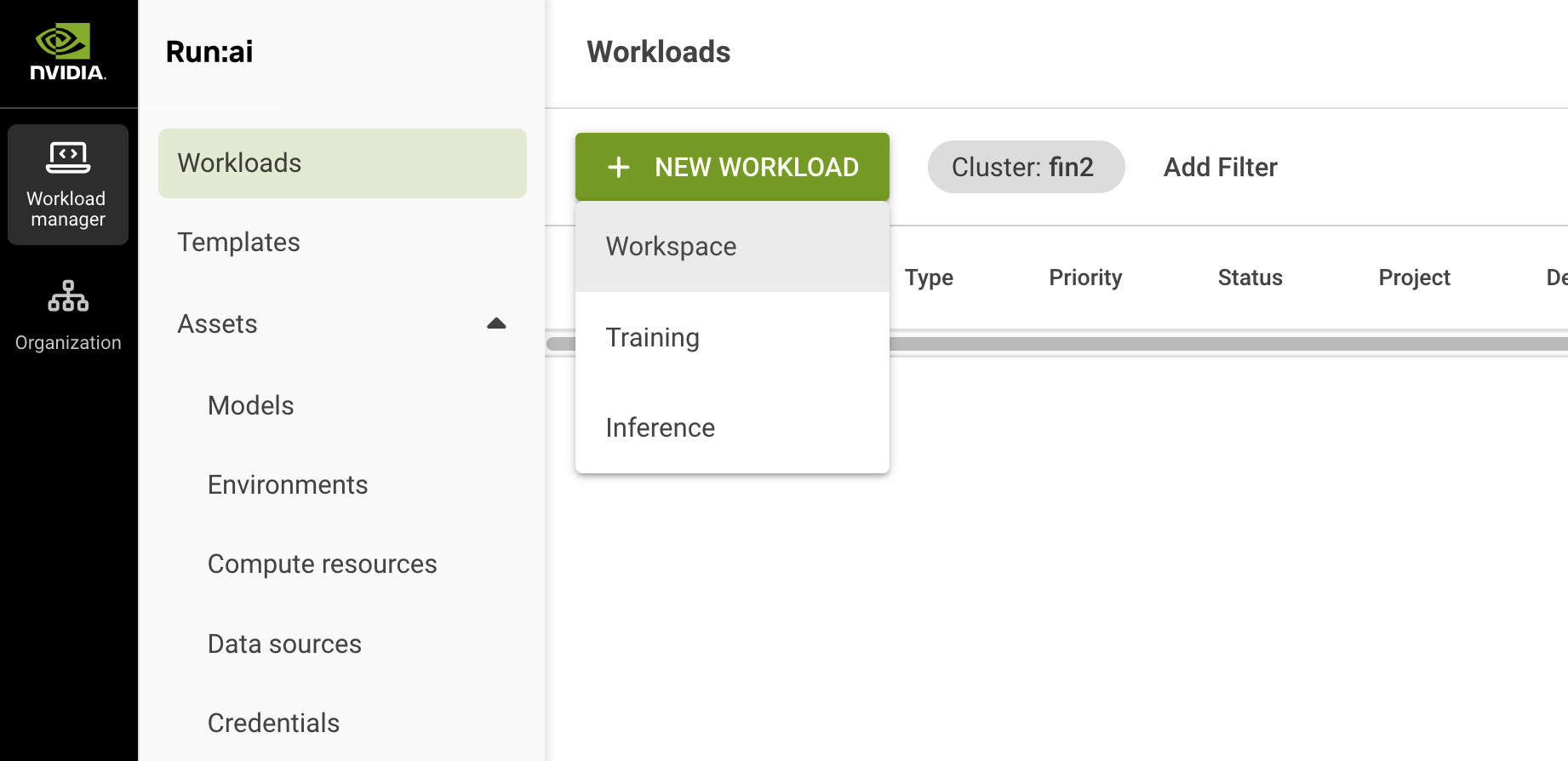
In run:ai UI go to Workload manager tab > Workloads.
Click NEW WORKLOAD and select Workspace from the dropdown menu.
Select project in which you want to deploy Jupiterlab.
Enter a name of your workload and click CONTINUE.
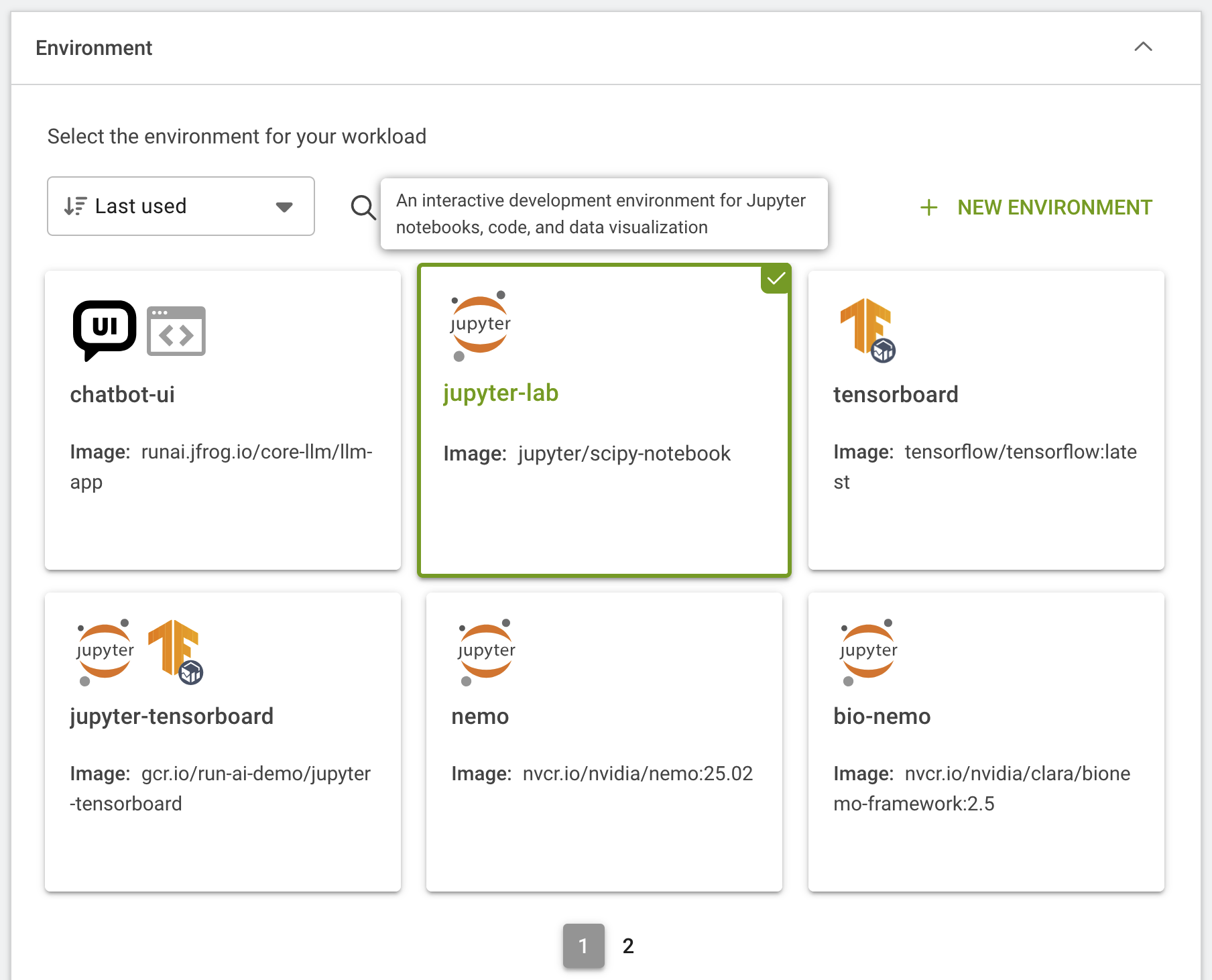
On the next page select jupyter-lab environment:
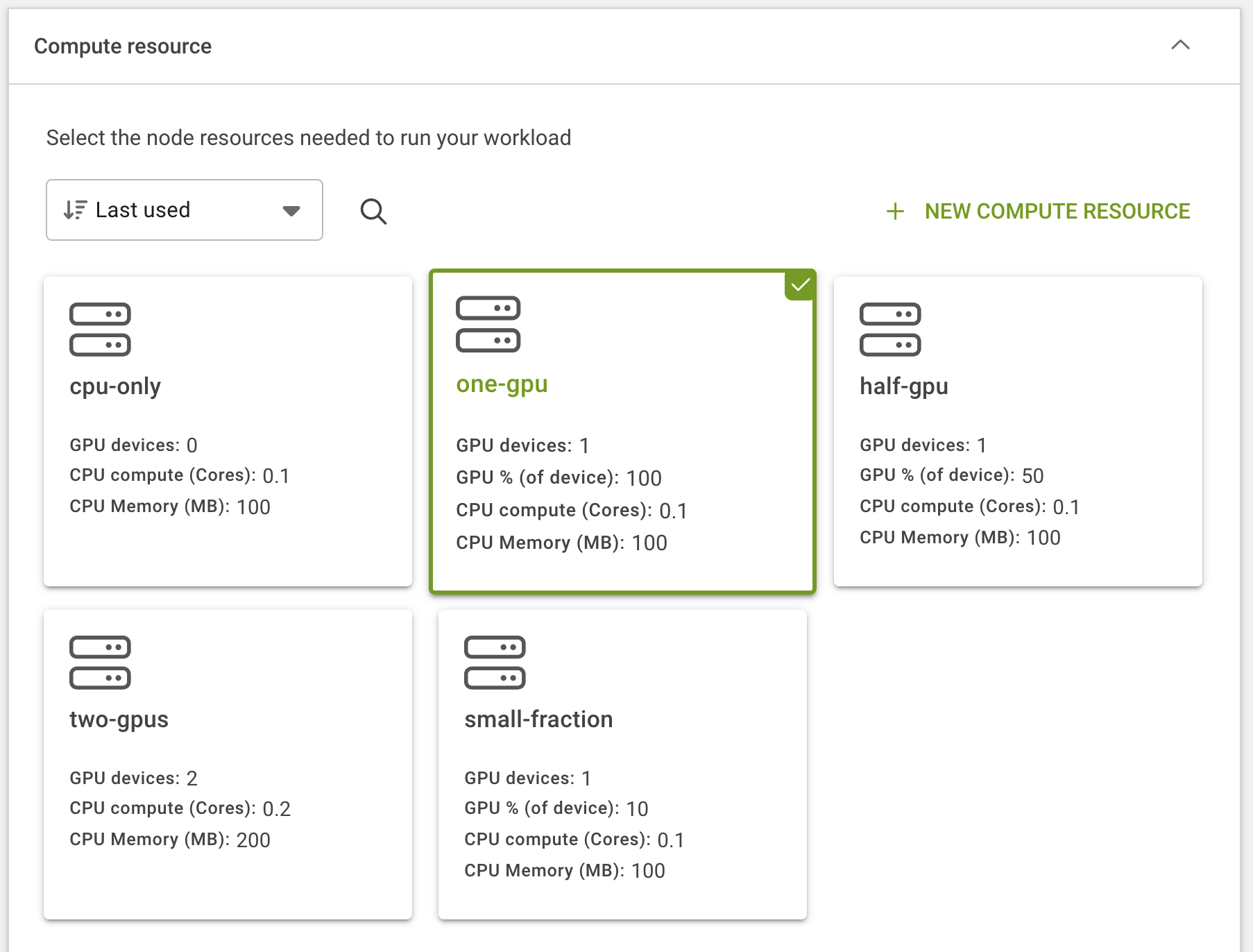
In Compute resource section select a fraction you want to use, for example 1 GPU:
In Data sources section select your data source, for example PVC and define Container path – a path where the data source will be mounted inside of the container.
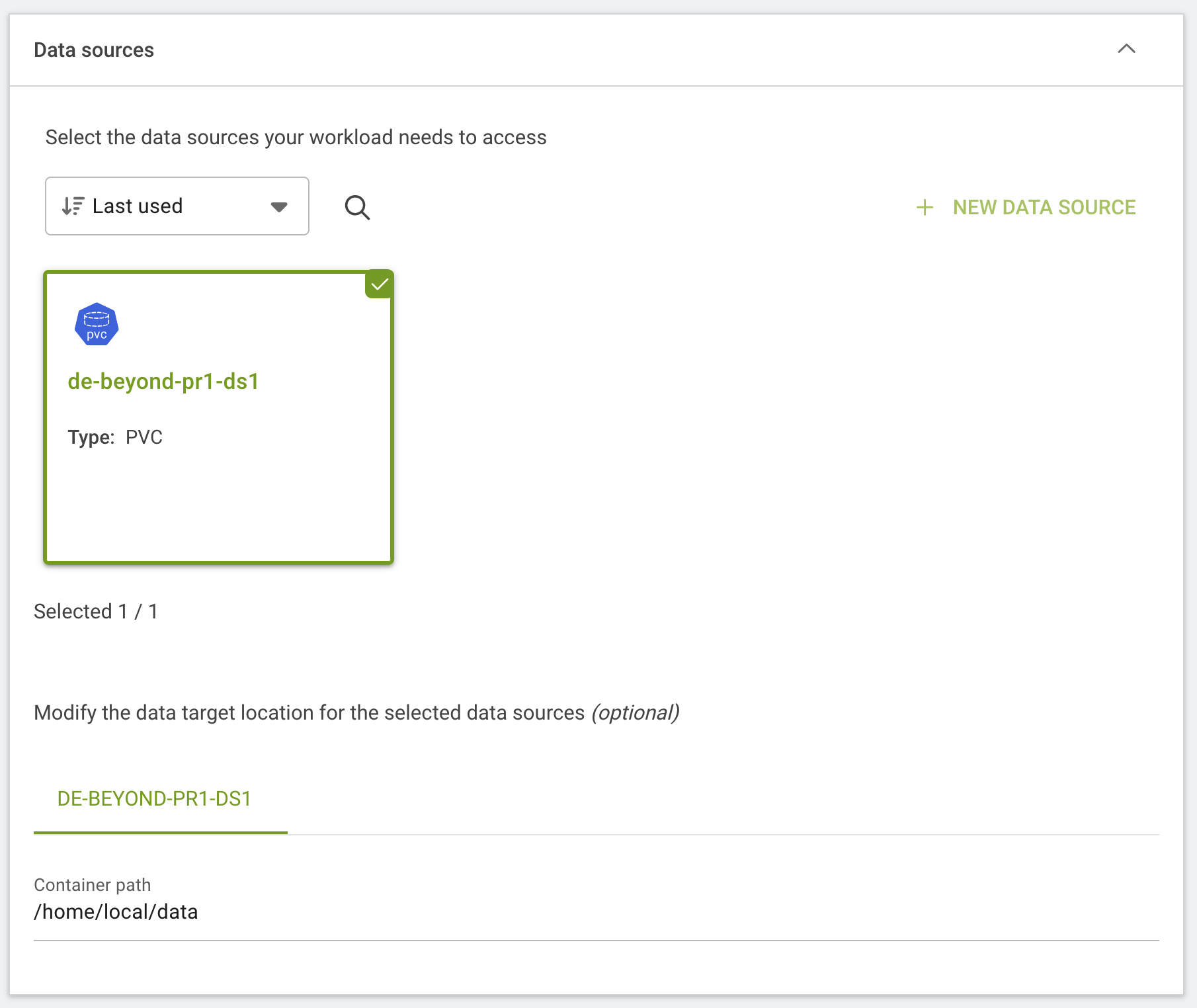
Click CREATE WORKSPACE.
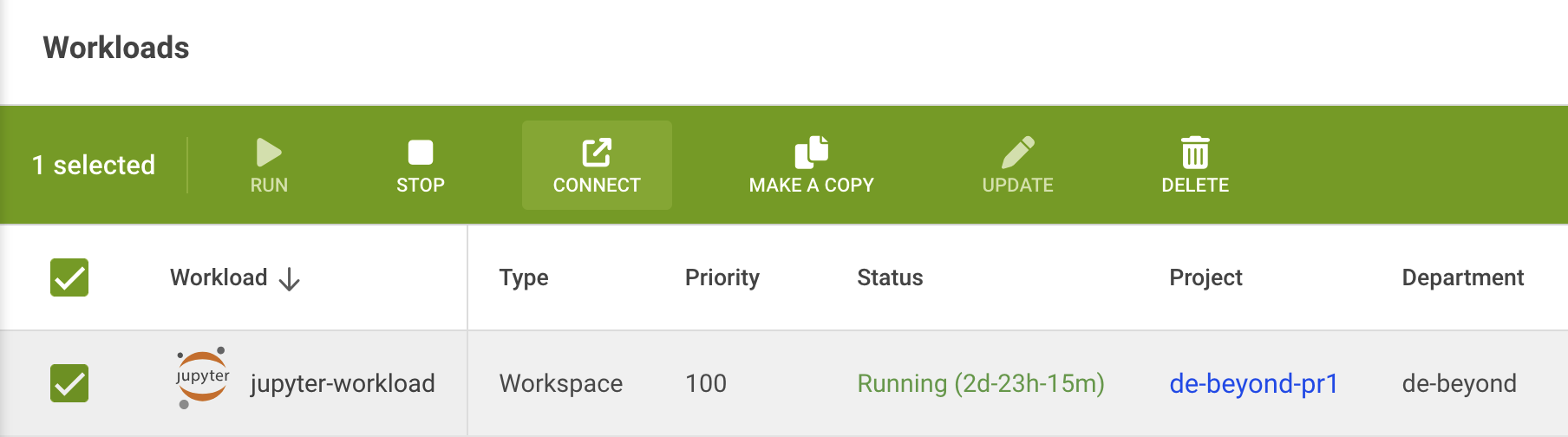
The workload will start to deploy, wait until the status will change to Running.
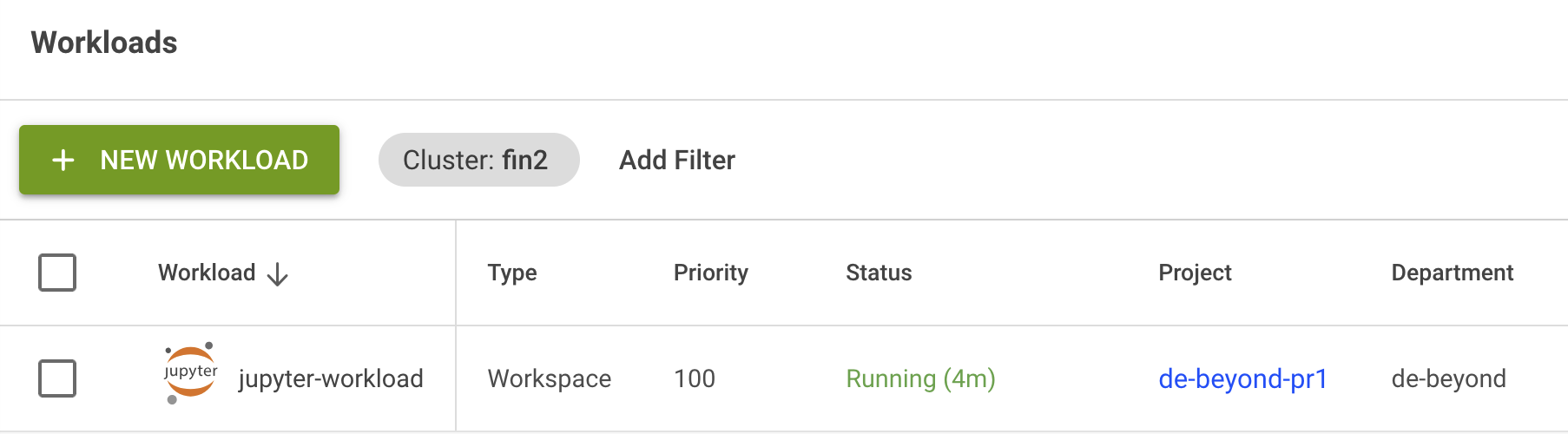
When your workload is up and running you can connect to jupyter-lab by selecting it and choosing CONNECT, jupyter-lab will lunch in new tab of your browser.