How to create distributed inference workload
This section explains how to deploy distributed inference workload using NVIDIA run:ai UI and CLI.
Distributed means a single workload accessed with single endpoint URL but spread across many GPUs.
Keep in mind that inference workloads are affected by the project’s quota. They have assigned very-high priority
by default, so they are non-preemptible workloads. Inference workloads are not allowed to go over the quota of your project’s.
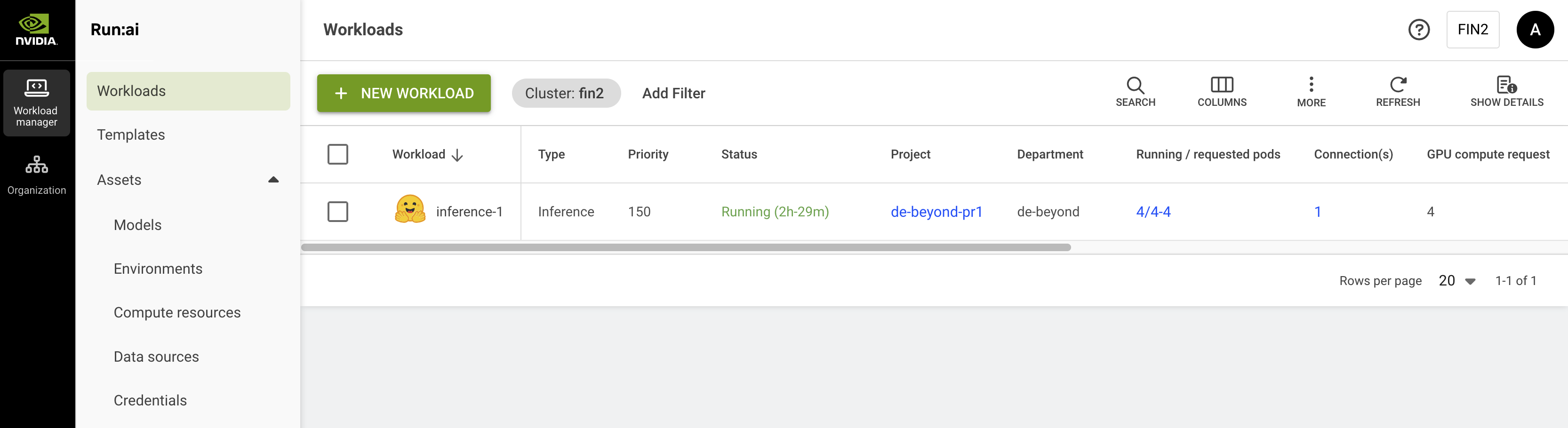
In run:ai UI go to Workload manager tab > Workloads.
Click NEW WORKLOAD and select Inference from the dropdown menu.
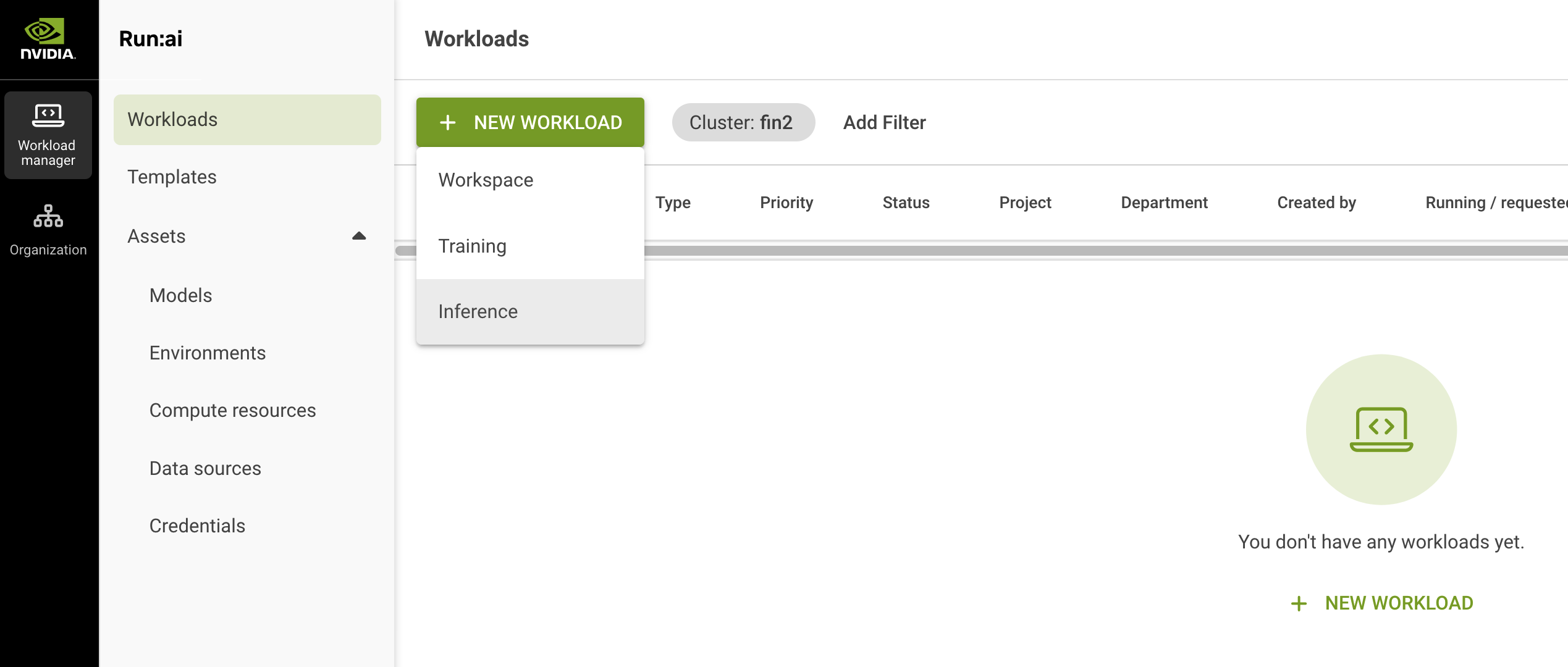
Select project in which you want to deploy inference.
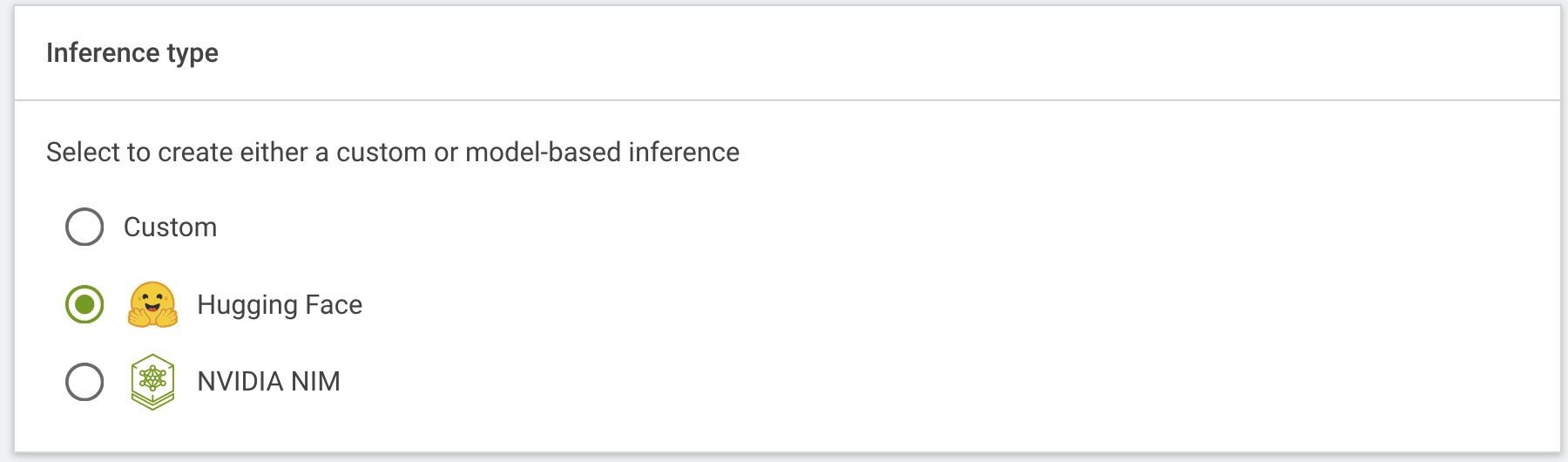
Select inference type: - Custom – if you need to deploy a custom model or a different model than LLM - Hugging Face – if you need to deploy a model from Hugging Face - NVIDIA NIM – if you need to deploy a model from NVIIDIA NIM
For this tutorial we will deploy a model from Hugging Face:
Enter a name of your workload and click CONTINUE.
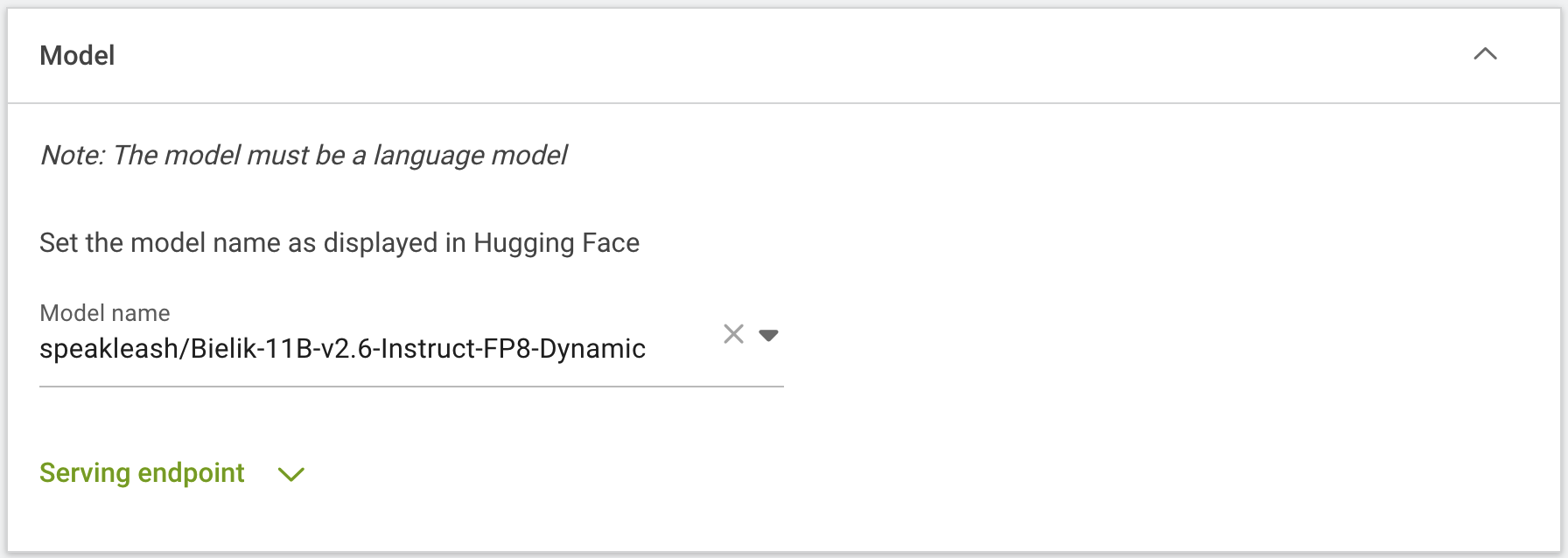
On next page in Model section provide a model name as displayed in Hugging Face:
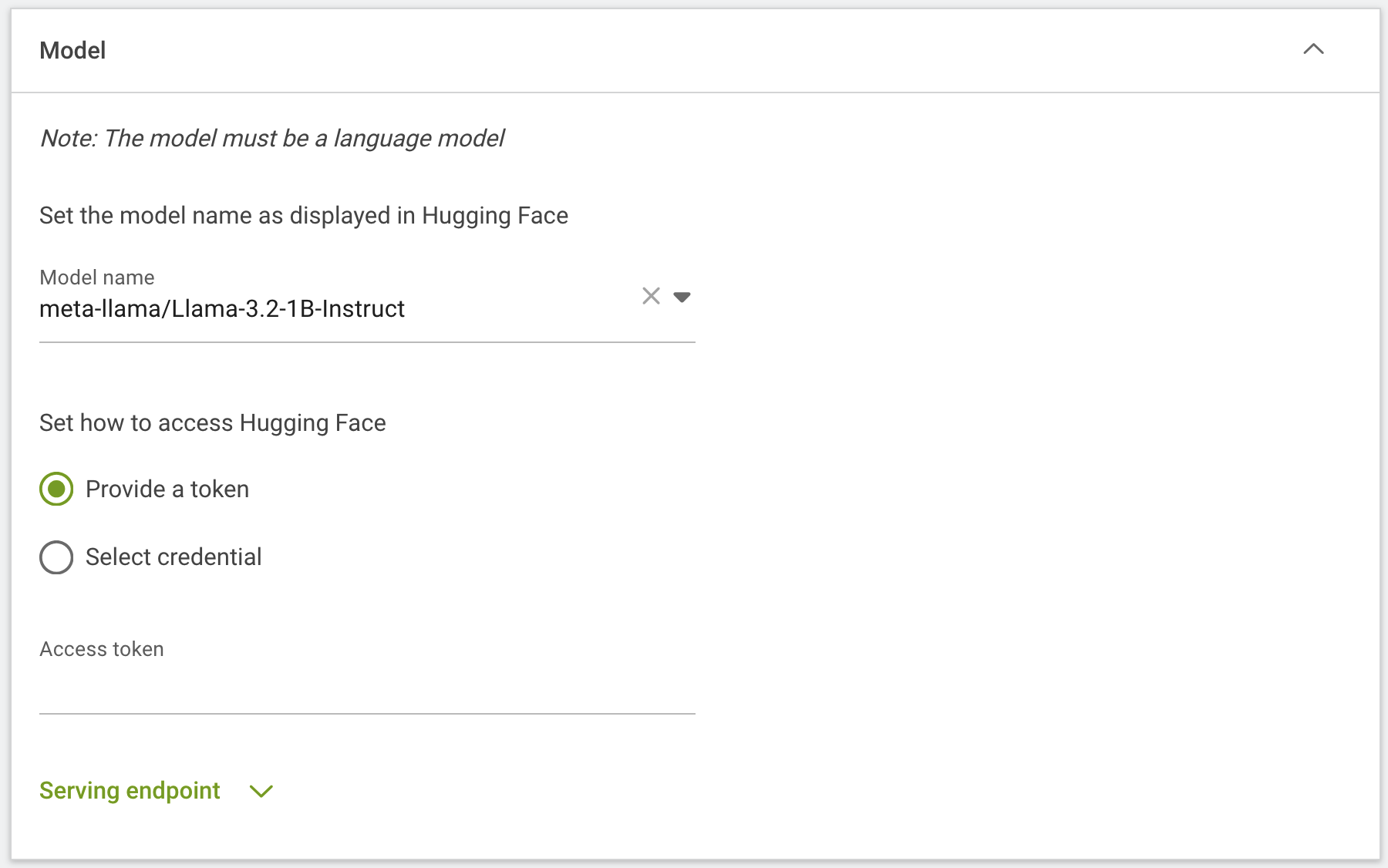
If model require an access token you can provide it directly at this step or choose previously added from credential assets:
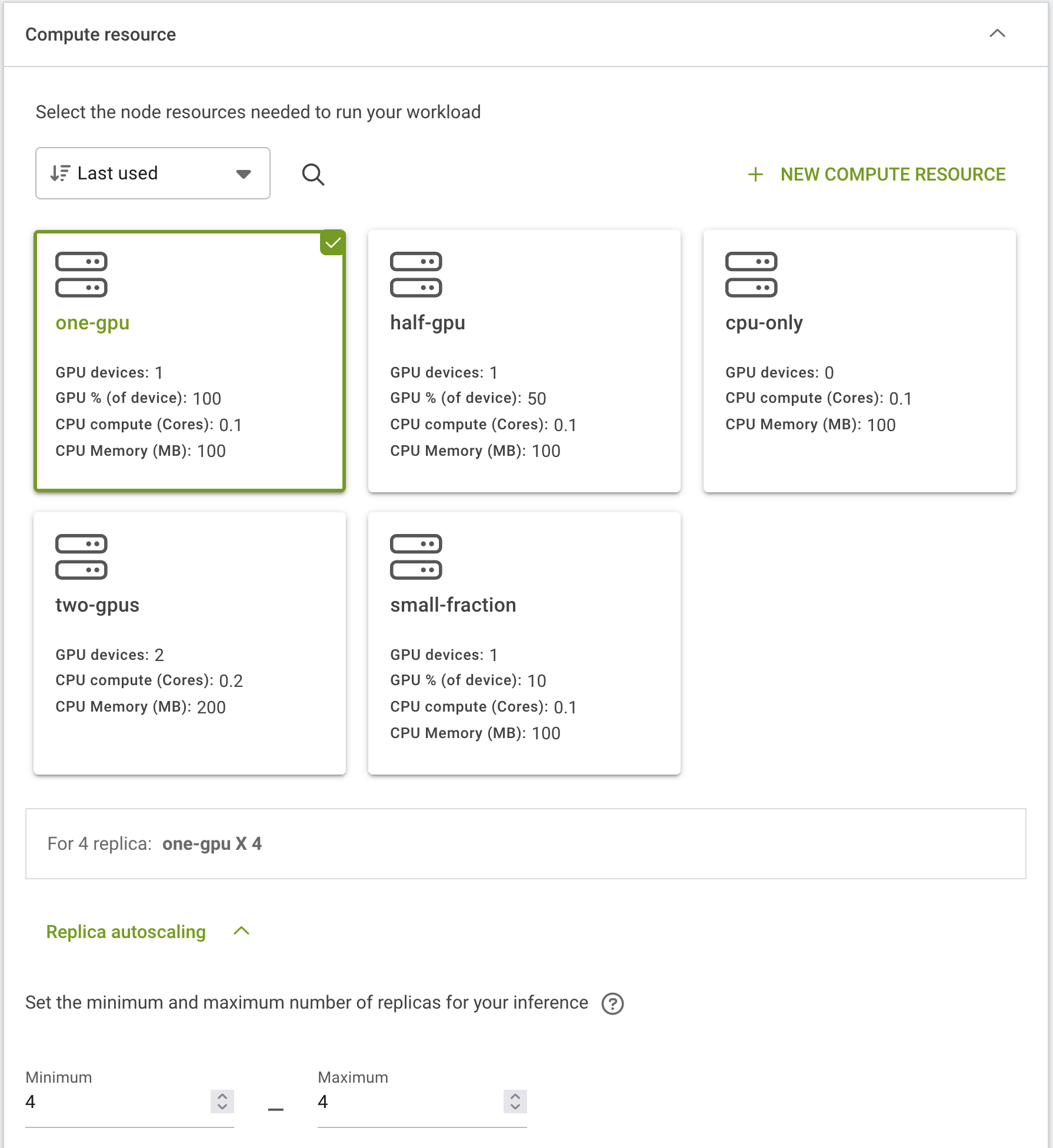
Select GPU fraction, to deploy distributed inference for example on 4 GPUs where 1 GPU = 1 model replica select one-gpu fraction and in Replica autoscaling section select 4 minimum and 4 maximum replica.
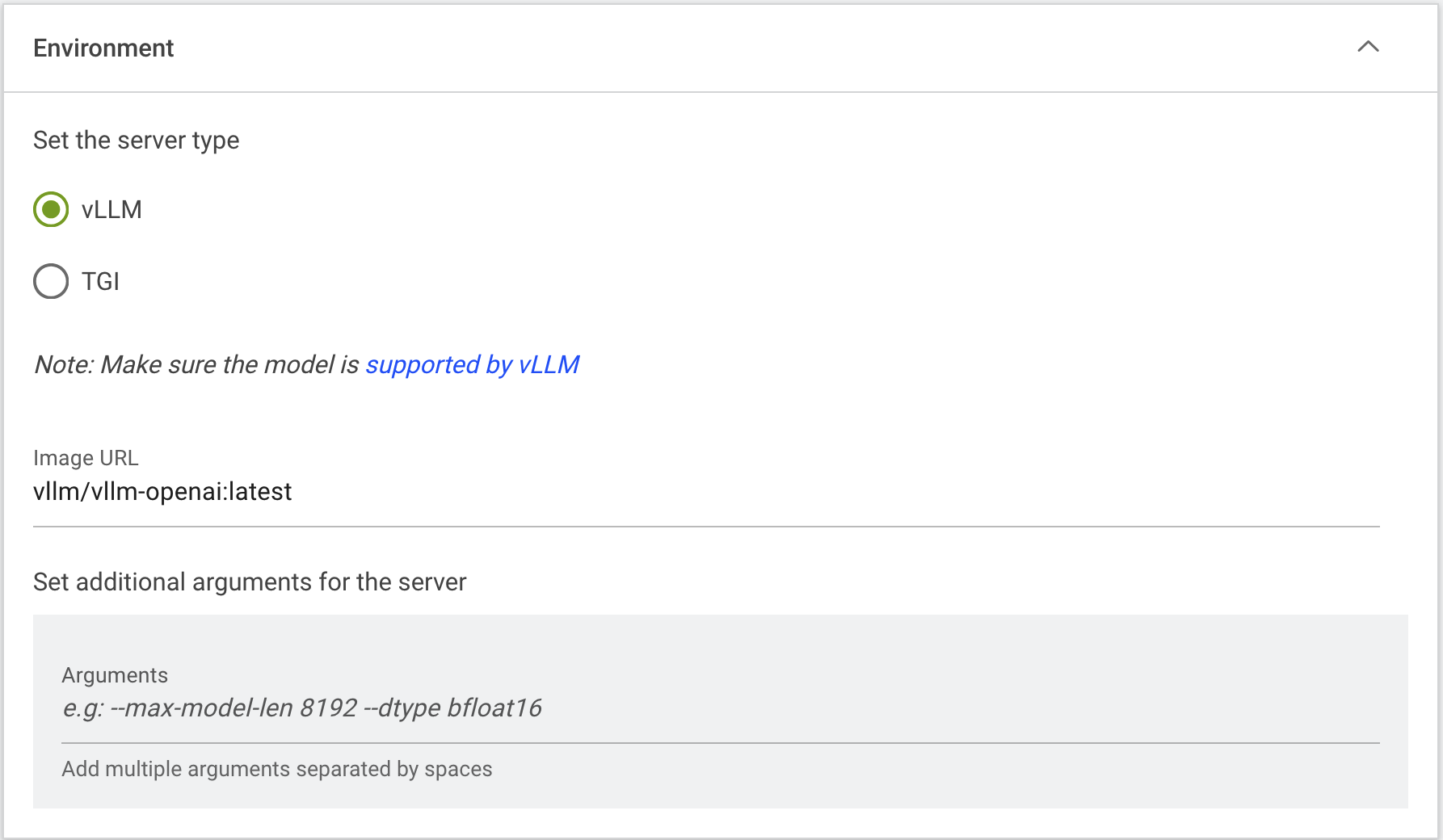
In Environment section select inference server and if needed set additional arguments:
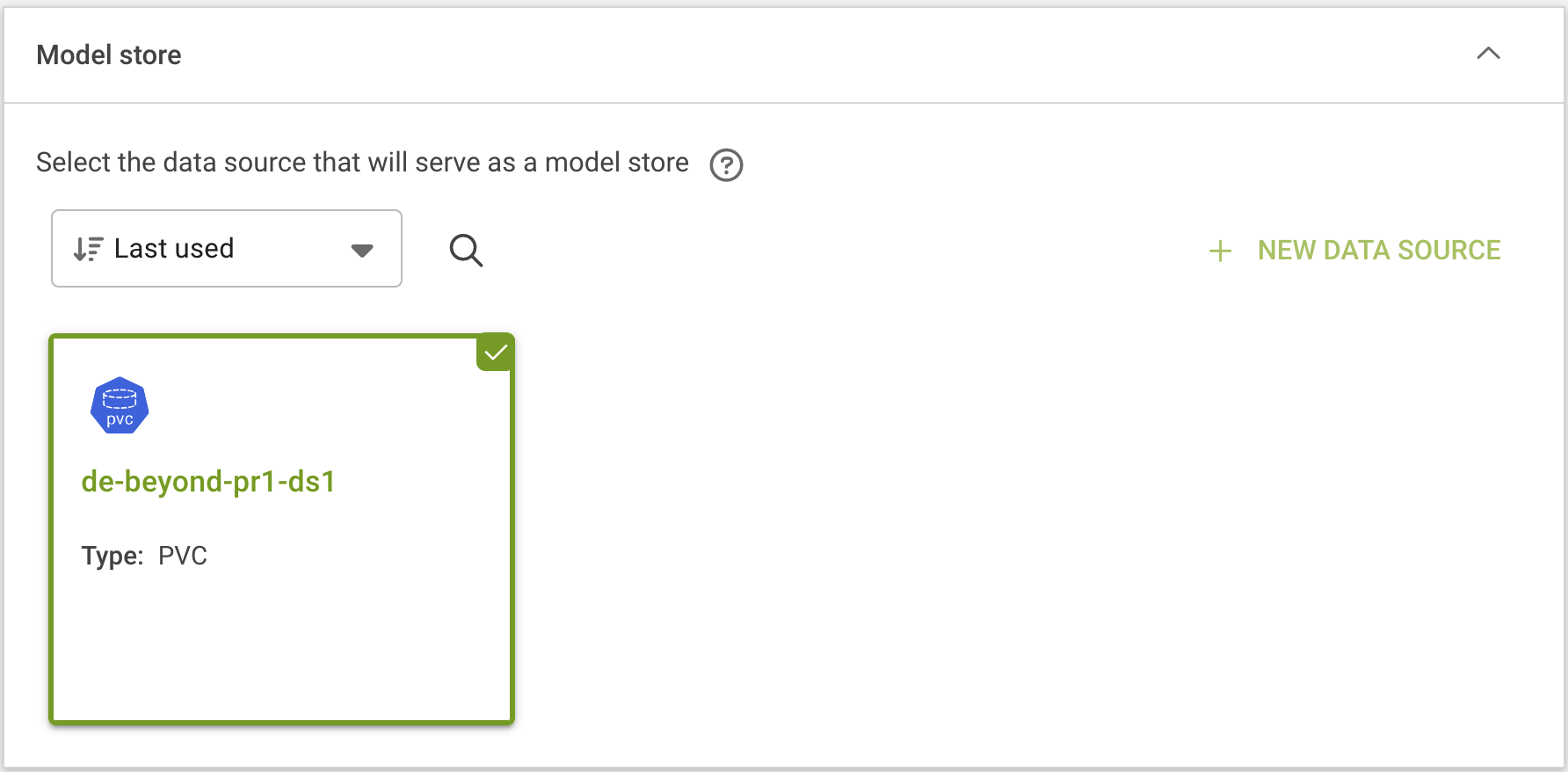
In Model store section select your data source – for example PVC. If you will not select a data source here model will be deployed on local storage of cluster node. It is recommended to use data source PVC for distributed inference to deploy models replica faster – this is important in case where workload will redeploy on different node.
Click CREATE INFERENCE to start the deployment.
Depending on the size of model, deployment should take few minutes. Once the workload is up and running you can start using it.
You will find the workload endpoint in the Connection(s) column, if it is no visible you need to add it using the COLUMNS icon:
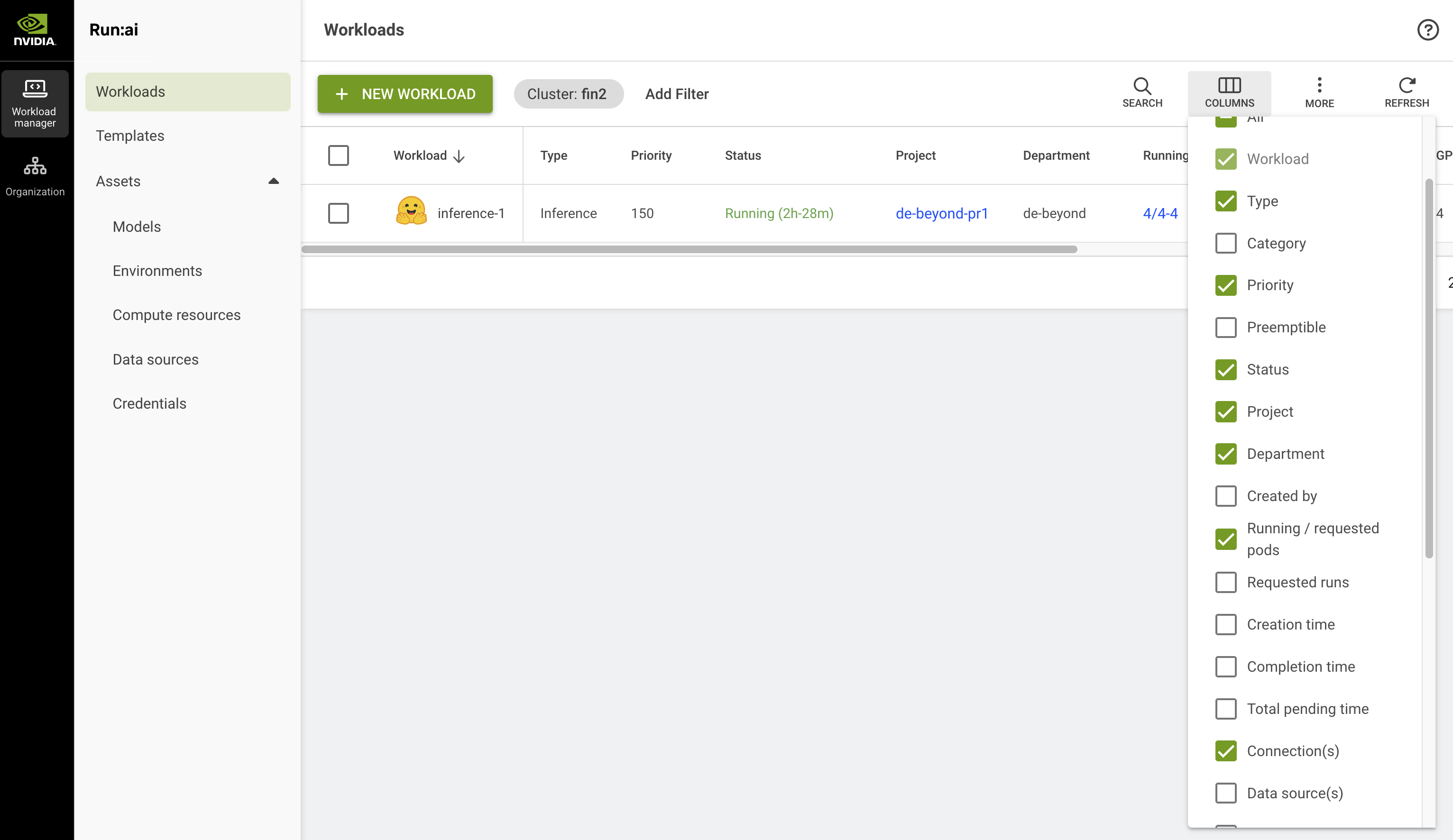
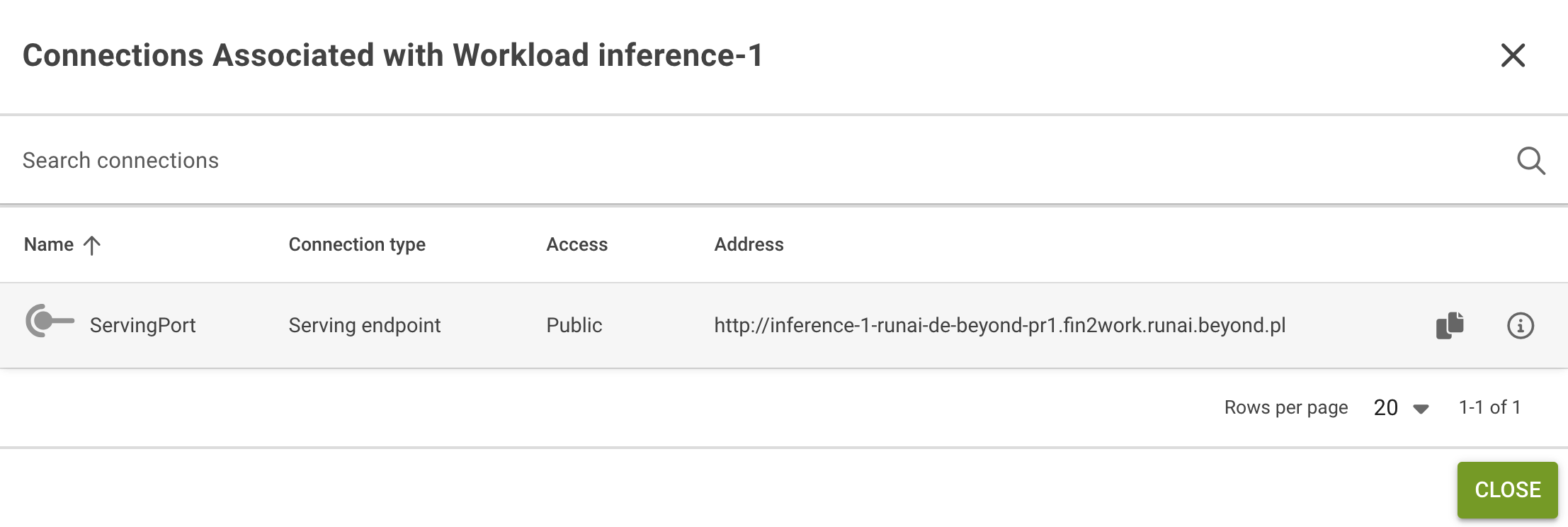
The endpoint in run:ai will appear with http, you need to change it to https to be able to access it from internet.